Years ago, when the web team at seoplus+ began documenting processes and projects, Confluence was selected as the platform to host all of the information. Over time, without a designated owner to maintain the platform, it became cumbersome to navigate and search. Meanwhile, other departments explored documentation platforms and gravitated toward Notion due to its intuitive interface and collaborative capabilities. As the only team still reliant on Confluence, the web team faced challenges when sharing information with colleagues across the organization. Migrating to Notion provided a much-needed opportunity to centralize web knowledge into a user-friendly, searchable hub that could serve the entire company.
Article takeaways:
- Notion’s improved interface, search functionality, collaboration tools, and database made the decision to switch from Confluence incredibly simple.
- Having a centralized documentation space for the whole company allowed easier information sharing and project collaboration.
- Auditing your documentation before migration, testing migration tools, and then manually reviewing and cleaning up your new Notion space are key steps to take for a successful migration.
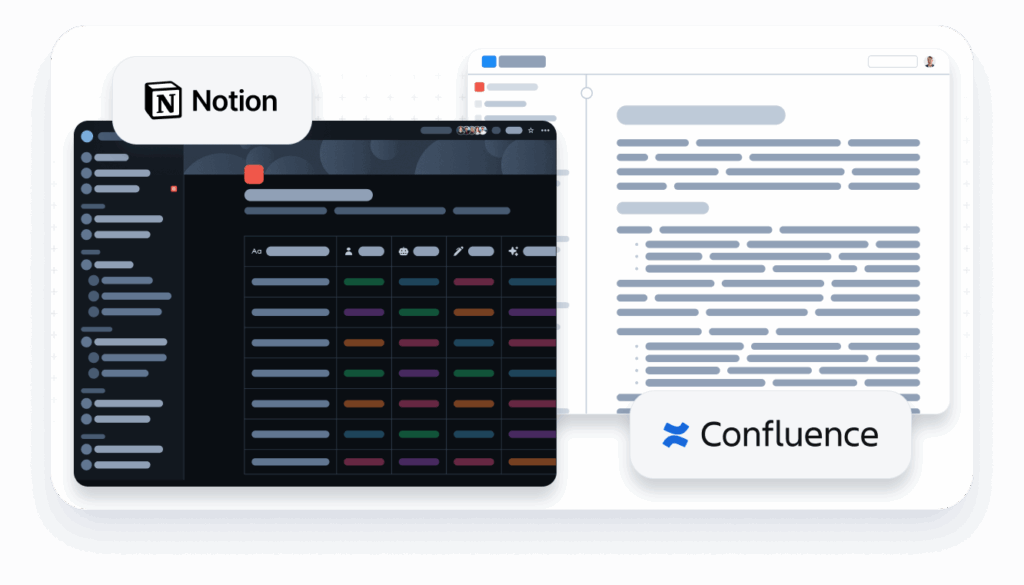
Benefits of Notion vs. Confluence
When evaluating documentation platforms, Notion emerged as a strong contender due to its intuitive design, flexibility, and enhanced collaboration tools. Here are some key advantages:
| Feature | Notion | Confluence |
| User-Friendly Interface | Intuitive drag-and-drop design, customizable pages, and visually appealing layouts. | Complex interface that requires more training and experience to navigate effectively. |
| Cross-Department Accessibility | Centralized platform encourages easy sharing and collaboration across teams. | Limited cross-department visibility; access often restricted or requires setup by admins. |
| Real-Time Collaboration | Multiple users can edit documents simultaneously with live updates and no conflicts. | Collaboration is possible but less seamless, with version conflicts in some cases. |
| Search Functionality | Robust search capabilities to quickly locate documents, even with nested structures. | Search can be slow and often requires precise queries to find specific content. |
| Customization | Highly customizable with templates, layouts, and tagging options for diverse team needs. | Limited customization options for page design and layout. |
| Integration with Tools | Integrates seamlessly with tools like Slack, Google Drive, Trello, and more for a cohesive workflow. View all 120+ integrations. | Fewer integration options; requires additional setup for compatibility with external tools. View all 20+ integrations. |
| Database Functionality | Built-in database functionality allows for greater options for organization, user flows, time trackers and calculators. | Does not have a specific database feature, but does have plugins that would aid in simulating this. |
“After working in Confluence for a little while, it was suggested I try Notion. Not necessarily as a replacement, but simply because they thought it was great and incredibly flexible for both personal and team use. I fell in love with the platform and used it regardless of whether others did. Eventually, the team agreed with this point, and we decided to move our team’s knowledge base to Notion. The biggest difference is how little friction we feel day-to-day. With Notion, the same page can serve as a document, a database, and a lightweight dashboard—all without the need for plugins or special macros. That flexibility means we spend less time ‘structuring’ knowledge and more time using it. It’s nested templates, huge community library, and structured editing put it leagues ahead of a plain Google Doc.”
Omari Wright, Web Development Manager
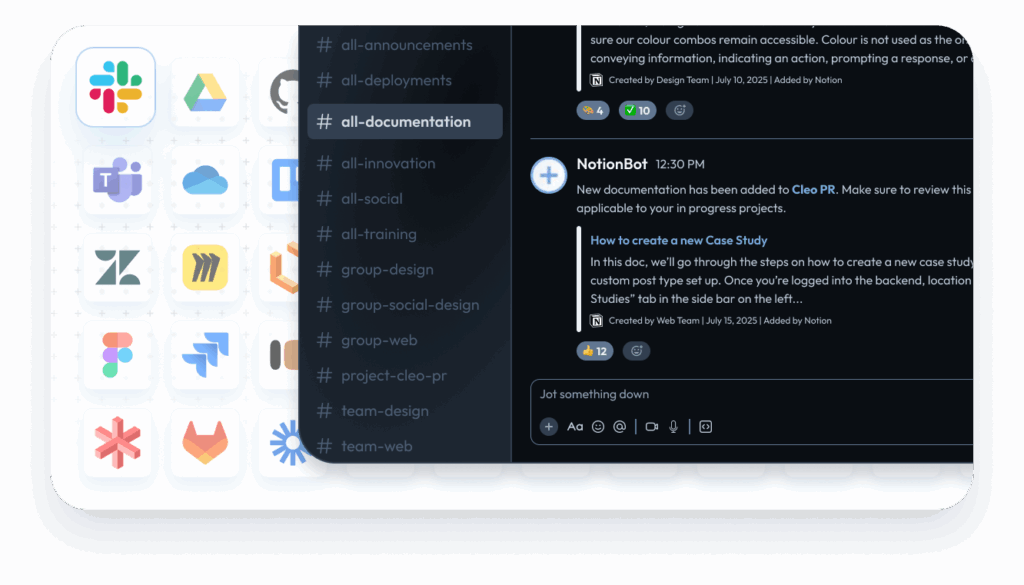
Enhanced information sharing
Centralizing documentation in Notion improved how the web team shared and accessed information with other departments. Some key benefits included:
- Improved Searchability: Notion’s advanced search capabilities and hierarchical structure made locating documents significantly easier.
- Cross-Departmental Access: By moving from a platform limited to the web team to one adopted company-wide, departments could now find and contribute to documentation effortlessly.
- Encouraging Knowledge Sharing: The user-friendly platform inspires everyone to document processes proactively, leading to a culture of knowledge-sharing across our organization.
Notion’s database feature enabled our team to build out a client repository where all important information is housed and easily accessible. No question for seoplus+ when it comes to Notion vs. Confluence.
“What I love about Notion is the ability to build out a doc with pre-built components. They are easy to move around, which makes the organization of information very simple. The database functionality is also a game changer and has allowed us to display information visually. All of this functionality has made building our Tool Library and VIP Client Hub within Notion a far better choice than Confluence or Google Docs.”
- Brian Warren, Art Lead
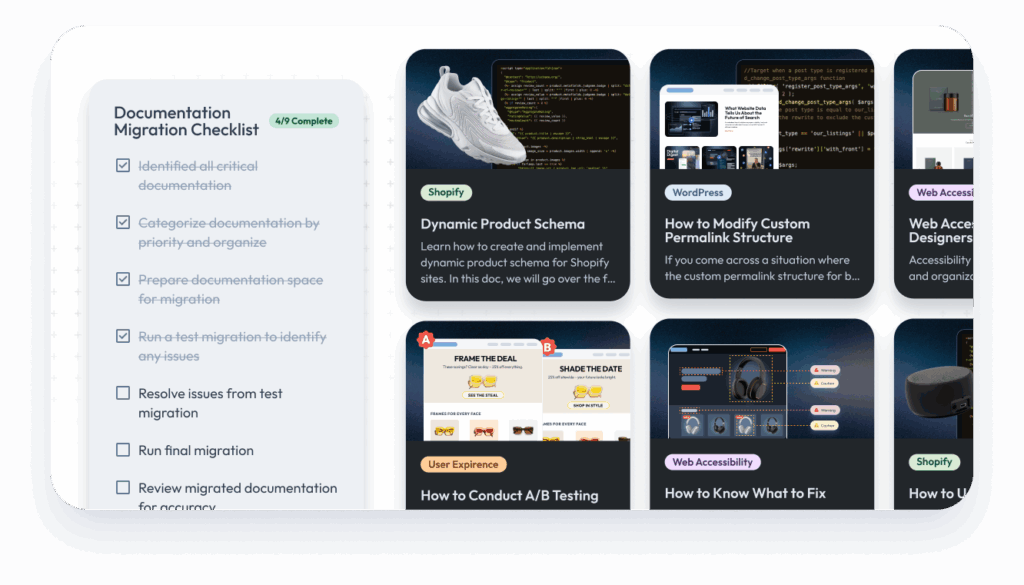
Preventing data loss during migration
Migrating documentation platforms comes with the inherent risk of data loss or incomplete transfers. To ensure a smooth transition, our web team implemented the following strategies:
- Thorough Pre-Migration Audit: Identified all critical documentation on Confluence and categorized it by priority to ensure nothing was overlooked.
- Automated Migration Tools: Leveraged tools that facilitated bulk data transfer while maintaining document hierarchy and formatting.
- Manual Review & Cleanup: Post-migration, we conducted a thorough review to address formatting issues (or missing files) and updated documentation for relevance.
Migrating from Confluence to Notion has been a transformative step for seoplus+, enabling the web team and the entire company to centralize documentation in an intuitive, collaborative, and accessible platform. The transition was a game-changer, demonstrating how proactive documentation is critical, especially for organizations in a growth phase. Notion is centralized, user-friendly, and means fewer headaches for teams across the board.
Looking to work with a digital partner that embraces innovation and continuous improvement? At seoplus+, we’re not just keeping up, we’re leading the way by building smarter systems, streamlining collaboration, and investing in the tools that help us deliver better results. Let’s build something great together.
Frequently asked questions
What is the learning curve like when transitioning to Notion?
Transitioning to Notion is easy. Like any other document editor, you can easily create a new page and start writing. However, there is a slight learning curve in understanding the function of each block. To overcome this learning curve, I recommend creating a page, adding different blocks to it, and experimenting with the settings of each to get a feel for how they function and where they would be most suitable to use.
How do we ensure consistency in documentation structure within Notion?
Once our web team’s Notion space was fully set up, we had a training session to review the new setup, learn how to create documentation, and discuss best practices for using the new platform. We also have a quarterly health check task where we review new items, reorganize documentation as needed, update out-of-date information, and update styling or block selection.
Does Notion support version history and edit tracking like Confluence?
Yes, Notion supports version history and edit tracking, but the length of the history depends on the plan your team is on. The following are the history lengths per plan:
- 7 days if you’re on a Free Plan.
- 30 days if you’re on a Plus Plan.
- 90 days if you’re on a Business Plan.
- Any number of days if you’re on an Enterprise Plan.
In Confluence, regardless of your plan, you will always be able to view the entire history of a document.
Can Notion documents be exported for backup or offline use?
Yes, you can export Notion documents to PDF, HTML, Markdown & CSV formats. Inside the export settings, you can choose the export format, export databases in their current view or Notion’s default view, include or exclude additional files and images, include or exclude subpages, or create folders for your subpages.
What are some best practices for structuring a knowledge base in Notion?
When setting up your knowledge base, it is essential to first plan out what information is necessary for success, what would be nice to have but is not critical, and what is completely unnecessary. Knowing what information to include or exclude means that you won’t overwhelm your team with unneeded details.
When setting up our client knowledge base, we reviewed all the information we had access to and categorized it into three categories: what we definitely needed, what we would like to include, and what would either be redundant or unhelpful. The following is a breakdown of some items that fell into each category:
| Critical info | Nice to have info | Redundant/Unhelpful info |
|---|---|---|
| Client name Client contact info Website Account manager Critical team members Types of access Services provided Existing client-specific documentation | What CMS are they using If they had staging environments Backend access links Social media links Any warnings that would affect processes | Links to interior pages Non-critical team members who work on the account How long they’ve been a client |